
Office Recovery Guide in Pictures
Launch the executable file you downloaded. When an installation is done you can start the restoration of your data. The software is easy to use and does not require any additional skills.
Office Recovery Start:
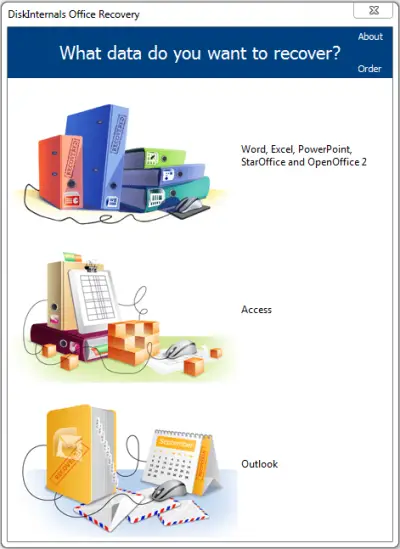
You need to select what do you want:
- Word, Excel, PowerPoint, StarOffice and OpenOffice 2;
- Access;
- Outlook.
If you choose Word, Excel and etc. recovery:
You will see a welcome window:
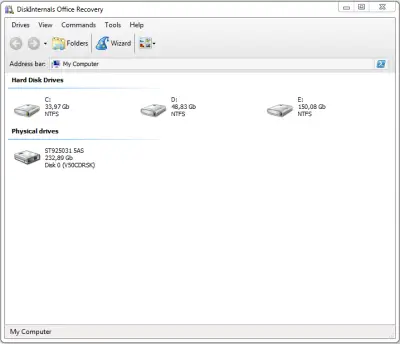
The wizard opens by default, but if you accidentally skip it - click the button with a magic hat named 'Import Wizard'.
Search for recoverable files will starts. After finishing the Wizard, and press Finish - the main window will open. Here you can preview and select the files you want to recover.
If you choose Access Recovery:
In that case you can read this Access Recovery guide. It has all information you need.
If you choose Outlook Recovery:
You need to select: what mail recovery you want? It could be: Recover email after a disk crash, repair email database, Address Book Recovery.
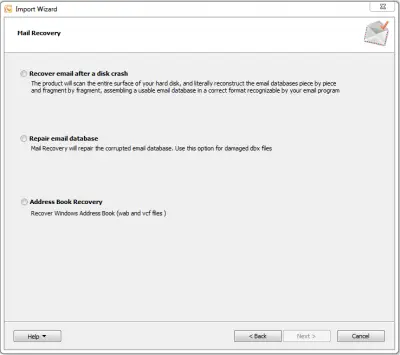
Search for recoverable files will starts. After finishing the Wizard, and press Finish - the main window will open. Here you can preview and select the files you want to recover.
Since now you know that you are able to recover your files, you need to purchase the program online. Good luck!
Related articles
- Recover Unsaved and Corrupted MS Word Documents | DiskInternals
- SharePoint vs OneDrive
- Office 365 two-factor authentication
- About Exchange Online Protection
- About Office 365 Advanced Threat Protection
- Recover Microsoft Office documents
- Lost Office Documents | DiskInternals Office Recovery
- How to Repair a PowerPoint file: Recover your presentation!
- PowerPoint Not Opening? Fix it!
- Microsoft 365 Admin Center
- How to manage Office 365 SMTP settings
- Google Drive vs OneDrive
- Connect to Exchange Online using PowerShell
- About Office 365 Backup Policies
- Here is how to backup OneNote