
Word Recovery Guide in Pictures
Launch the executable file you downloaded. When an installation is done you can start the restoration of your data. The software is easy to use and does not require any additional skills.
Word Recovery Start:
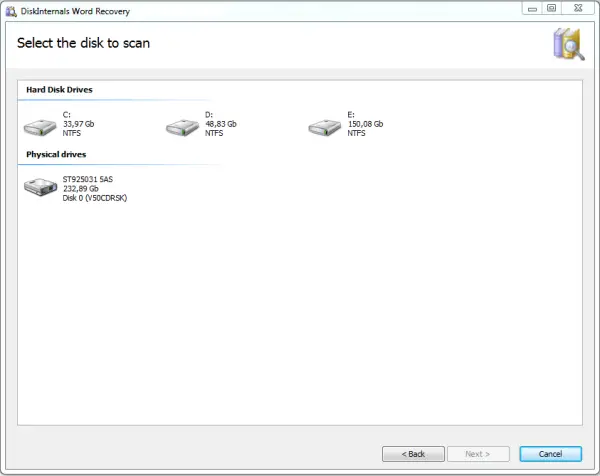
You need select the disk to scan:
Search for recoverable files will starts. After finishing the Wizard, and press Finish - the main window will open.
Here you can preview and select the files you want to recover. You select files and click the red cross named "Recover".
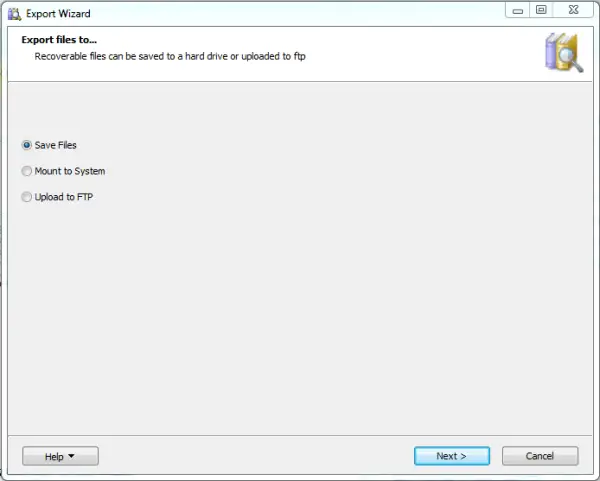
Now you need to choose how to export your files: save files, mount to system, upload to FTP.
Since now you know that you are able to recover your word documents, you need to purchase the program online. Good luck!
Related articles
- User doesn’t have access privileges for Word document
- MS Word not responding? Fight for your documents!
- Special case: accidentally saved over a Word document
- ODT file recovery: all you need to know
- [Solved] Word file is corrupted and cannot be opened
- Guide: How to Recover Unsaved WordPad Document
- Recover Notepad Files Today!
- How to Recover Deleted Word Documents
- Microsoft Word Keeps Freezing? Fix It!
- If Microsoft Word Keeps Crashing on Windows 10
- If Microsoft Word doesn’t open
- Solved! Recover unsaved Word documents on Windows 10!