Partition Recovery guide
How to Recover Data from a RAW or Inaccessible Partition Safely
Last updated: October 16, 2026
To recover data from a RAW partition safely, recover the files before trying to repair, convert, or reformat the partition. Stop writing to the affected device, cancel Windows format prompts, do not initialize the disk, and do not run CHKDSK, DiskPart, or another metadata-writing repair tool yet.
Recovered files must be saved to another healthy physical device with enough free space. Do not save them to the RAW partition or to another partition on the same affected physical disk.
The correct path depends on what Windows is actually showing. A logical RAW file system, unallocated space, access denied, BitLocker encryption, a missing drive letter, and a physically unstable device are different conditions. They should not be treated with the same recovery method.
Stop immediately if the device clicks, repeatedly disconnects, disappears, overheats severely, reports rapidly increasing read errors, or changes capacity. These symptoms may indicate physical failure. Repeated software scans can make a failing device worse.
What a RAW or Inaccessible Partition Means
A RAW partition is a volume that Windows cannot identify or mount with a usable file system. Disk Management may show the file system as RAW, File Explorer may refuse to open the drive, or Windows may ask you to format it before use.
RAW does not mean that every file is gone. It means that Windows cannot currently interpret the file-system information required to present the files normally.
It is also not a root-cause diagnosis. The same RAW label can appear after logical file-system damage, interrupted writes, partition-table problems, storage errors, or failure of the physical device.
Why a Previously Readable Partition Can Appear as RAW
A previously readable partition may appear as RAW when important file-system or disk-layout metadata can no longer be read or interpreted correctly.
- damaged file-system metadata;
- partition-table or boot-record damage;
- an interrupted write, resize, migration, installation, or operating-system operation;
- unsafe removal of external or removable storage;
- malware or an unexpected shutdown;
- storage errors in sectors containing important structural data.
These are possible causes, not conclusions that can be drawn from the RAW label alone. Diagnosis must also consider device stability, physical detection, capacity, encryption, the previous file system, and what happened immediately before access was lost.
RAW Is Not the Same as Unallocated or Access Denied
These states can look similar to a non-technical user, but they represent different problems:
- RAW partition
- A partition entry usually exists, but Windows cannot mount a usable file system inside it
- Unallocated space
- Windows does not recognize an active partition entry for that area of the disk
- Access denied or partition inaccessible
- The file system may still be recognized, but permissions, ownership, policy, encryption, or corruption can prevent access
- BitLocker-protected volume
- The partition may be healthy but locked. Logical recovery cannot replace a missing encryption key
- Missing drive letter
- The volume may exist and remain intact but not be mounted in File Explorer
- Physically unstable device
- The disk, controller, bridge, enclosure, cable, power supply, or flash media may be failing
Do not assume that every partition access denied or partition inaccessible error is a RAW-partition problem. First confirm what Disk Management shows, whether the file system is recognized, whether the device is encrypted, and whether the physical disk is stable.
Protect the Source Before Recovery
The affected disk contains the only remaining copy of the data you are trying to recover. Every new write can replace file-system structures, folders, or file content that still exists.
Actions to Stop Immediately
- format the RAW partition;
- initialize the physical disk;
- create or recreate a volume;
- convert the file system;
- run CHKDSK, DiskPart, or another metadata-writing repair operation;
- reinstall Windows or another operating system on the affected disk;
- install recovery software on the affected partition or physical device;
- copy new files to the source;
- save recovered files to the source;
- use another partition on the same affected physical disk as the recovery destination;
- repeatedly power-cycle or reconnect an unstable drive.
Do not accept the Windows format prompt. Formatting creates a new file system. It is not a data-recovery step.
A repair tool may change metadata in a way that makes the volume mountable again, but that does not prove that the required files are intact. Recover and verify the data elsewhere first.
Check for Physical Failure or an Unstable Connection
Confirm whether the physical device is detected consistently with the same model and total capacity.
- clicks, grinds, scrapes, or repeatedly spins up and down;
- disconnects during reading;
- disappears from Disk Management, Device Manager, BIOS, or UEFI;
- reports a changing or incorrect capacity;
- becomes severely slow while producing read errors;
- overheats;
- has a damaged connector, circuit board, enclosure, or USB bridge;
- contains irreplaceable data and behaves unpredictably.
For an external HDD, SSD, or removable device, one controlled check of the cable, port, enclosure, reader, adapter, power supply, or USB bridge is reasonable. Use known-good components where possible.
Repeatedly reconnecting an unstable device is not a safe troubleshooting method. If the symptoms remain, stop and consider professional recovery.
Decide Whether to Create a Disk Image First
A disk image is a sector-level copy of the readable source stored on another physical device. Where technically possible, later recovery scans can work from the image instead of repeatedly reading the original storage.
- the source has read errors but remains stable enough for controlled imaging;
- the data is highly valuable;
- several recovery approaches may need to be tested;
- the device may degrade with continued use;
- the source should be preserved before any repair decision.
- the source model and capacity;
- the image destination;
- the imaging tool and settings;
- unreadable sectors or errors;
- whether the source remained stable;
- the date and test conditions.
The image destination must be healthy, physically separate, and large enough for the complete image.
Imaging does not repair the original device. Do not attempt a prolonged DIY image of a drive that clicks, disconnects repeatedly, overheats severely, or cannot be detected consistently.
Diagnose the State Before Choosing a Recovery Path
The table below is the main decision point. Do not move to a software scan until the observed state matches a logical-recovery path.
RAW file system
- What Windows shows
- The partition exists, but Disk Management shows RAW or Windows requests formatting
- Safest first check
- Confirm the correct physical disk, expected capacity, previous file system, and stable detection
- Appropriate next path
- If stable, use a non-destructive scan and preview. If read errors are present, consider an image first
- Do not do yet
- Do not format, initialize, convert, or run CHKDSK
- Stop or escalate when
- The device disconnects, clicks, overheats, changes capacity, or unreadable sectors increase
Unallocated or missing partition
- What Windows shows
- The expected space has no recognized volume or partition entry
- Safest first check
- Confirm the physical disk identity, total capacity, and where the previous partition was located
- Appropriate next path
- Use a lost-partition scan or image-first workflow rather than RAW repair
- Do not do yet
- Do not create a new volume, extend another volume, or initialize the disk
- Stop or escalate when
- The disk geometry is uncertain, several layouts are plausible, or the device is unstable
Access denied or inaccessible
- What Windows shows
- The file system may still be recognized, but Windows refuses access
- Safest first check
- Check the exact error, file-system label, permissions, ownership, mount state, and encryption status
- Appropriate next path
- Resolve permissions or encryption when supported by evidence; use data recovery only when corruption is confirmed
- Do not do yet
- Do not assume RAW or change permissions blindly
- Stop or escalate when
- The encryption key is unavailable, changes may affect evidence, or hardware is unstable
Encrypted or BitLocker-protected
- What Windows shows
- Windows shows a locked or encrypted volume or requests a recovery key
- Safest first check
- Confirm BitLocker or other encryption and locate valid credentials or recovery keys
- Appropriate next path
- Unlock with valid credentials before logical recovery. Use an image where appropriate
- Do not do yet
- Do not format or treat encryption as file-system corruption
- Stop or escalate when
- Required keys are unavailable or the device is physically unstable
Physically unstable device
- What Windows shows
- The device disconnects, clicks, slows severely, reports read errors, overheats, or changes capacity
- Safest first check
- Stop activity and record the symptoms. Assess controlled imaging or professional recovery
- Appropriate next path
- Use a professional lab or a controlled image-first process when qualified to do so
- Do not do yet
- Do not run repeated full scans, repairs, formatting, or initialization
- Stop or escalate when
- Immediately if the condition worsens or the device cannot be read consistently
A stable RAW partition is the main software-assisted scenario covered by this guide. Unallocated space, encryption, permission errors, and physical failure require different decisions even when the user describes all of them as an “inaccessible drive.”
How to Recover Data from a RAW Partition Safely
This workflow explains how to recover a RAW partition without losing data to avoidable writes. If your goal is to recover files from a RAW partition, use this sequence only when the physical device is stable, consistently detected, and not blocked by unavailable encryption keys.
Identify the Correct Physical Device and Destination
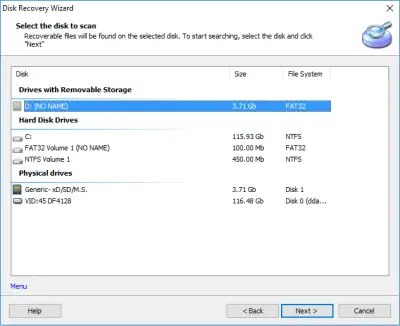
Before scanning, identify three separate things:
- Source device
- the physical HDD, SSD, external drive, USB device, memory card, or disk image that contains the RAW or inaccessible partition
- Affected partition
- the logical volume that Windows shows as RAW or cannot mount normally
- Destination device
- another healthy physical device that will receive recovered files
Verify the source by model, total capacity, connection type, and existing partition layout. Do not rely only on a drive letter. Drive letters can change, disappear, or point to the wrong volume.
- healthy;
- physically separate from the source disk;
- large enough for all files you plan to recover.
Another partition on the same physical disk is not a safe destination.
Work from a Disk Image When the Source Is at Risk
Apply the stability decision made earlier.
If the source has read errors but remains stable enough for controlled imaging, create a disk image or recovery snapshot first. Document the source, destination, image size, read errors, and whether the imaging process completed.
Run the later RAW partition recovery scan against the image where technically possible. This limits repeated access to the original device and preserves a repeatable recovery source.
Do not make a full scan of a failing physical disk the default first action. If the device disconnects, clicks, overheats, changes capacity, or becomes less readable, stop.
Run a Non-Destructive Scan
After confirming that this is a stable logical RAW or inaccessible-partition case, open the DiskInternals Partition Recovery product page, where you can download a free trial version of the product. A RAW partition recovery tool is appropriate here only because the source has already passed the logical-versus-physical diagnosis.
Install Partition Recovery on a healthy Windows system drive. Never install it on the RAW partition, another partition on the affected physical disk, or the image destination.
The current product documentation lists three modes:
| Recovery mode | What it is for |
|---|---|
| Reader mode | for read-only access when a supported file system can be interpreted without deep reconstruction |
| Fast scanning (Uneraser) | for a faster search when deep file-system reconstruction is not required |
| Full scanning (Full recovery) | for a deeper scan and virtual reconstruction of recoverable file-system structures |
For a stable logical RAW partition, Full scanning (Full recovery) is usually the relevant starting point because Windows can no longer mount the original file system. Verify the current mode names and behavior in the production build before publication.
Select the correct physical source or verified disk image, not the destination device. Start the scan and allow Partition Recovery to build a browsable recovery result inside the application.
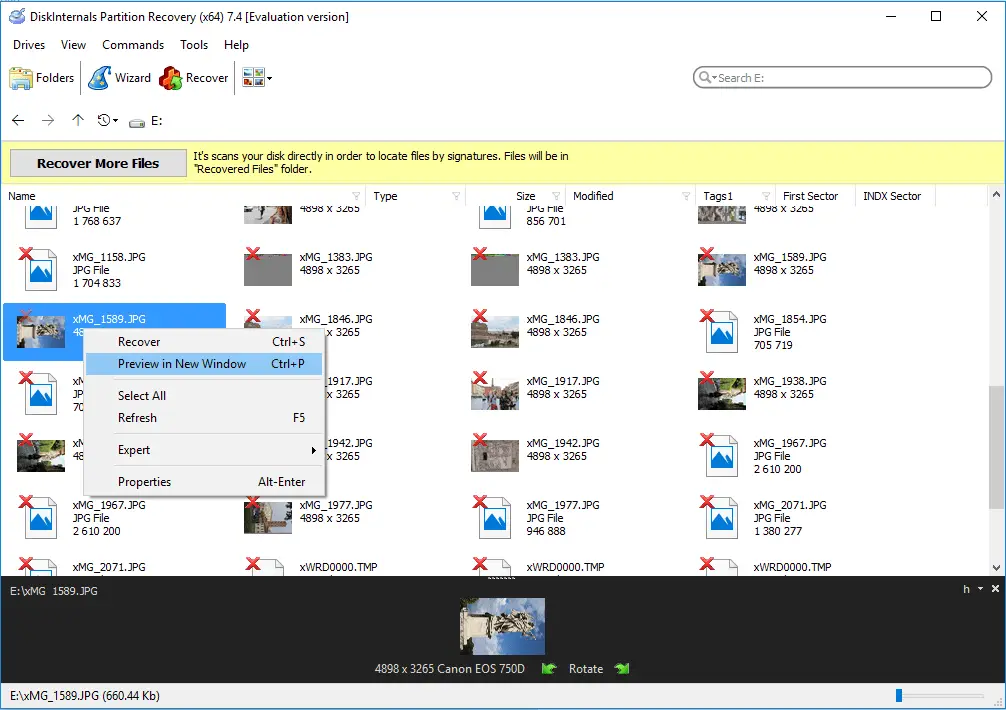
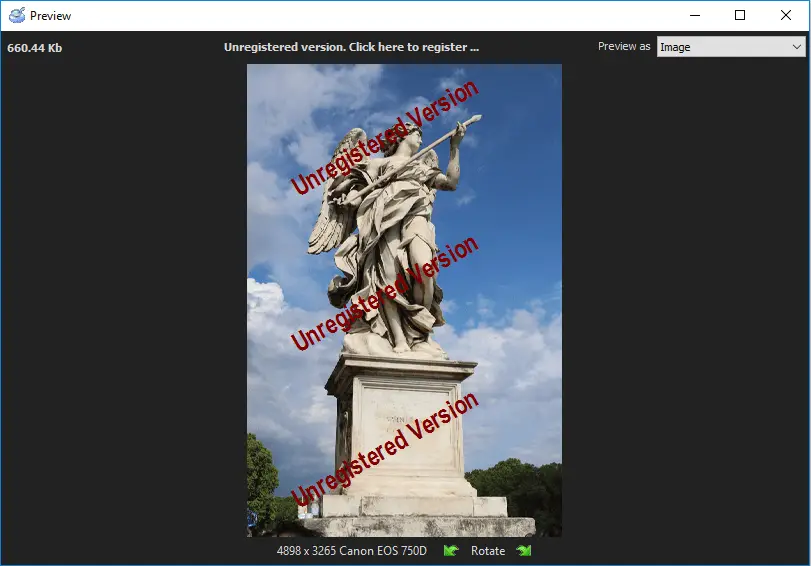
The free trial can be used to scan and preview supported recoverable files. Saving recovered files may require a paid license. When comparing RAW partition recovery software, keep this scan-and-preview boundary separate from paid file saving. Confirm the current trial restrictions against the release used for the first-party test.
Partition Recovery does not need to rewrite the RAW partition to show the virtual reconstruction. The scan and preview stage should remain separate from any later decision to repair, recreate, or format the source.
Preview and Validate the Found Files
Do not judge a scan only by the number of files found.
- expected folder names and hierarchy;
- filenames and extensions;
- timestamps where available;
- expected file sizes;
- representative documents, photos, videos, archives, databases, or project files;
- files from more than one important folder;
- the previous file system when it can be identified reliably.
Use the preview function on several representative files. A successful preview confirms only the specific file that was opened. It does not prove that every file in the reconstructed tree is complete.
- partial folder trees;
- files with missing names or paths;
- previews that fail;
- files that open only partially;
- files found by content rather than original metadata;
- unreadable sectors or skipped areas in the source image.
If the expected folders and files do not appear, review the source selection and scan mode before starting repeated scans. Do not keep scanning a device that becomes unstable.
Recover Files to Another Physical Device
When the required files have been found and previewed, select them for recovery.
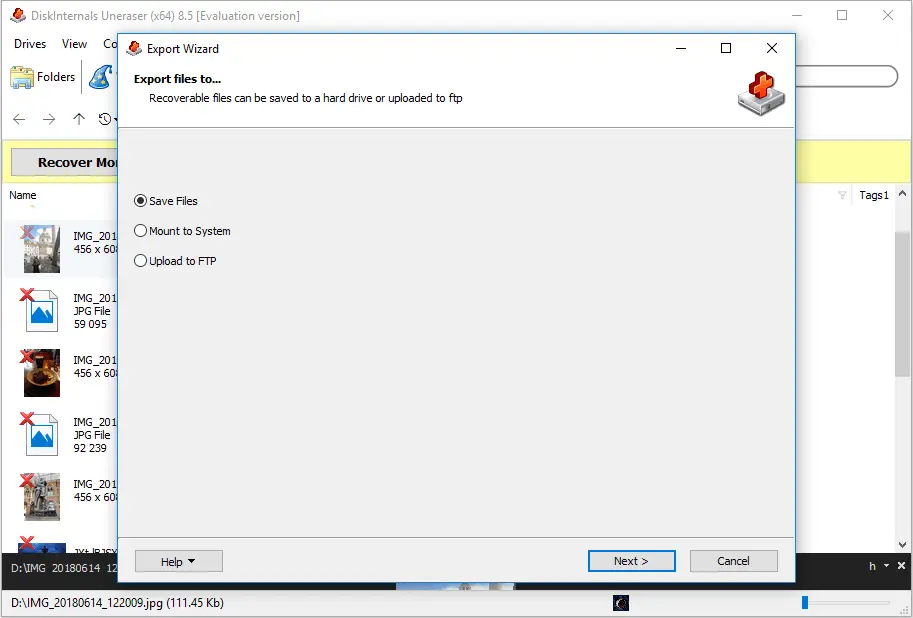
Save them only to the prepared destination device. The destination must be healthy, physically separate from the source disk, and have sufficient free space for the selected files.
- the RAW partition;
- another partition on the same affected physical disk;
- an unstable external enclosure or device;
- a destination that does not have enough free space.
The trial may allow scanning and preview while licensed functionality is required to save recovered files. Keep that boundary visible in the walkthrough and in the destination-selection screenshot.
Verify the Recovered Copy
Recovery is not complete when files have merely been exported.
- documents render correctly;
- photos open at the expected resolution;
- videos play beyond the first few seconds;
- archives can be tested or extracted;
- databases and project files open in the applications that use them;
- critical folders contain the expected files;
- file sizes and timestamps are plausible where preserved.
Prioritize unique, business-critical, legal, financial, research, or personal data. Keep the recovery log, scan notes, image details, and test results.
Do not repair, recreate, convert, or reformat the source until the required files are independently verified and backed up again.

Cases That Change the Recovery Workflow
The main data-first workflow remains the same, but the following cases change what evidence is needed or whether a software scan is appropriate.
Recovering a Previously NTFS Partition That Now Appears as RAW
To recover an NTFS partition from RAW, first confirm that NTFS was actually the previous file system. Useful evidence may include:
- the volume was previously used by Windows as NTFS;
- another system record or backup documents the file system;
- the scan finds coherent NTFS structures;
- expected NTFS folders, filenames, and metadata appear in the reconstructed result.
Do not force a RAW-to-NTFS conversion before recovering files. Creating a new NTFS file system or writing repair metadata is different from virtual file-system reconstruction inside Partition Recovery.
The software may reconstruct a browsable NTFS result for preview and export without writing that reconstructed file system back to the source.
RAW Partitions on SSDs
An SSD RAW partition requires more caution than a simple transfer of HDD assumptions.
- TRIM and garbage collection;
- controller behavior;
- hardware encryption;
- unavailable encryption keys;
- overwritten flash pages;
- controller or NAND failure;
- the physical condition of the device.
Avoid further writes and repeated scans. If the SSD disconnects, changes capacity, is detected inconsistently, overheats, or contains irreplaceable data, stop and seek specialist assessment.
A stable SSD with a logical RAW state may still be scanned, but no software can guarantee that trimmed, encrypted, overwritten, or physically unreadable data can be recovered.
RAW External Drives and Connection Problems
A hard drive partition shows RAW for logical reasons only when the physical device and connection remain stable.
- cable;
- USB or Thunderbolt port;
- enclosure or bridge;
- power supply;
- adapter.
If the same hard disk is showing a RAW partition through a stable connection, use the logical-recovery workflow. If it disconnects, reports different capacities, disappears during reading, or becomes severely slow, stop treating the issue as a normal RAW partition drive recovery case.
Repeated power cycles can make an unstable device worse.
Access Denied but the File System Is Not RAW
If Windows shows NTFS, FAT, exFAT, or another recognized file system but reports access denied, the problem may involve:
- permissions;
- ownership;
- policy restrictions;
- encryption;
- a locked volume;
- a damaged but still recognizable file system.
Do not change permissions, take ownership, disable security controls, or run repair tools blindly. First verify that the hardware is stable, identify the exact error, confirm encryption status, and determine whether the data belongs to an account or organization that can authorize access.
A partition access denied message does not by itself prove that RAW partition data recovery software is the correct solution.
What to Do After the Files Are Recovered
Repair and formatting belong after the recovery boundary—not before it.
Repair, Recreate, or Reformat Only After Verification
Formatting creates a new file system. It does not recover the old one.
- Verify the required files from the separate destination.
- Create a second backup of irreplaceable data.
- Preserve the disk image, recovery snapshot, and test notes where relevant.
- Confirm that the physical device is healthy enough to reuse.
- Replace the storage device if it showed instability, read errors, changing capacity, or other failure symptoms.
Do not return a physically unreliable disk to production because it temporarily became mountable after a repair or format.
If the device is healthy and the recovered data is secure, the original partition may then be recreated or formatted according to the intended use. That is a storage-preparation task, not RAW partition recovery.
Reduce the Risk of Another RAW State
- safely ejecting external drives and memory cards;
- maintaining stable power during writes, updates, migration, and partition changes;
- replacing unreliable cables, enclosures, adapters, and power supplies;
- monitoring storage health and error trends;
- creating a disk image before major partition or migration work;
- keeping current, tested backups on separate storage;
- replacing devices that disconnect, overheat, slow severely, or report increasing errors.
A backup is useful only when it is separate, current, and verified.
Frequently Asked Questions
-
Yes, when the device is stable and the required data remains readable, the safer approach is to scan the RAW partition, reconstruct a virtual file-system view, preview the files, and save them to another physical device. Formatting is not required for the recovery stage and should come only after the recovered copy has been verified.
-
Searches for free RAW partition recovery often refer only to a free scan or preview, while independently verified open-source tools may offer different capabilities. That does not mean every file can be saved for free. DiskInternals Partition Recovery currently provides trial scanning and preview, while saving recovered files may require a license. Verify the current product terms before publication.
-
No. CHKDSK can write file-system metadata, and Windows may refuse to run it on a RAW volume. Recover and verify the files elsewhere before considering any metadata-writing repair operation.
-
No. A RAW volume usually has a recognized partition entry but no file system that Windows can mount. Unallocated space has no recognized active partition entry for that area. Creating a new volume in unallocated space writes new metadata and should not be the first recovery step.
-
The RAW label means Windows cannot identify or use a mountable file system on that partition. It does not identify the exact cause. The problem may involve file-system metadata, partition-table or boot-record damage, storage errors, interrupted writes, or physical instability.
-
Possibly, but recovery depends on what remains readable and available. TRIM, garbage collection, controller behavior, encryption, overwrites, and physical failure can materially limit SSD recovery. Stop if the SSD is unstable or inconsistently detected.
-
Check whether Windows still recognizes the file system, then verify permissions, ownership, encryption, mount state, the exact error, and device health. Access denied is not automatically a RAW-partition problem and may require credentials or permission resolution rather than file-system reconstruction.
Next Step for a Stable Logical RAW Partition
Use software only when the physical device is stable, consistently detected, and not blocked by unavailable encryption keys.
Learn more about DiskInternals Partition RecoveryFree trial · scan and preview
The product page contains the free trial download and broader product information. Install the software on a healthy Windows system drive, scan the stable source or verified image, preview representative files, and save recovered data only to another healthy physical device.
Do not run recovery software on a drive that clicks or grinds, disconnects on its own, reports the wrong capacity, overheats, or is only detected some of the time. Repeated scans add stress to hardware that is already failing. Stop and talk to a professional data recovery service instead.