Raw Partition Drive Recovery: How to Recover Data from a RAW Hard Drive
Experiencing a hard drive that has become RAW and full of files can be a distressing event, particularly when you have no backups. However, the situation may not be hopeless as RAW drive recovery is possible to perform at home without expert skills or specialized equipment. If you are unfamiliar with recovering files from a RAW hard drive, this article is exactly what you need to successfully complete the process and retrieve your files quickly.
What Is a RAW Drive Recovery?
When your disk or partition shows up as RAW, it generally indicates one of three issues: the file system could be damaged or missing, the drive might not have been formatted with a file system, or Windows is unable to identify the file system. Windows is compatible with several file systems, such as ReFS (Resilient File System), NTFS, exFAT, and FAT32.
Should your drive or partition become corrupt or be displayed as RAW in Disk Management, there's no need to panic. Your data is still there; it simply needs to be retrieved.
Is It Possible to Recover a RAW Partition Without Losing Data?
You have two options to recover data from a RAW drive or partition. The first option is to convert the RAW drive or partition back to a readable format such as FAT32, NTFS, or exFAT. Alternatively, you can directly extract your desired files from the RAW drive or partition.
Data recovery software is the quickest and most effective way to recover your data. Among the plethora of data recovery tools available, DiskInternals Partition Recovery is considered one of the best. It can recover data from devices and partitions that appear as RAW.
Method 1: Fix Your RAW Drive without Formatting
CHKDSK is a built-in Windows utility that scans a volume for file system errors and other issues related to file system metadata. You can use various parameters with CHKDSK, including the "/f" parameter, which attempts to repair errors found on the specified drive. Here are the steps to use it:
- Open the Start menu, search for "cmd," and run the Command Prompt as an administrator.
- Type the following command in the Command Prompt: chkdsk X: /f (replace X with the letter assigned to the RAW drive).
- Press Enter and wait for CHKDSK to complete its scan and repair process.
If you can't use CHKDSK because your RAW drive has no assigned drive letter, don't worry - there is another method you can try.
Method 2: Fix Any RAW Drive without Data Loss
The best professional software for all kinds of hard and logical drives troubles is DiskInternals Partition Recovery. This software supports the following file systems: FAT12, ReFS, UFS, HFS, NTFS, ReiserFS, Reiser4, XFS, Ext2/3/4, etc.

The software can recover files from RAW partitions of any size and amount. DiskInternals Partition Recovery works under Windows 7, 8, 8.1, 10, Vista and other versions.
You can use the preview function of the files for free before restoring it. So, you be sure that your data can be recovered completely and efficiently. Only if you want to save the recovered files from RAW partition do you need to purchase a license for this product and enter the license key.
There is a free trial version of this tool. Download it and you will see everything described above. Below, for clarity and convenience, are step-by-step instructions for RAW partition files recovery.
Guide: recover files from a RAW partition with DiskInternals Partition Recovery
- 1. Download and install DiskInternals Partition Recovery.
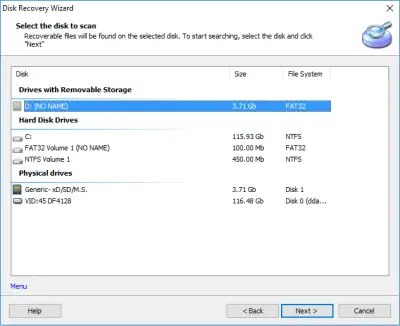
- 2. The recovery wizard will ask you to select the drive or partition.
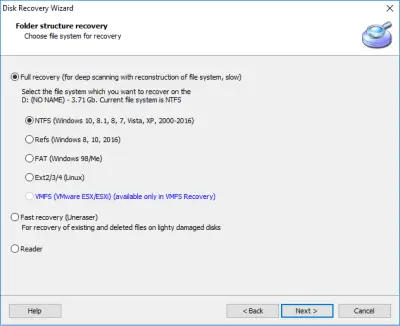
- 3. Select the recovery mode: full (recommended), fast, or reader. In the full recovery mode, you need to select the file system that was there before it became RAW (it’ll be detected automatically, but you need to put a check on it).
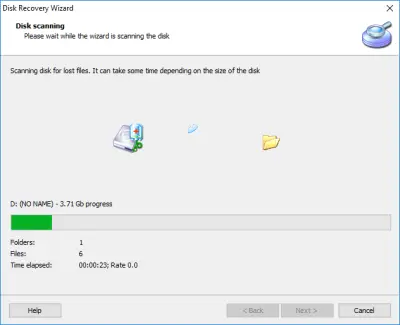
- 4. Next, the scanning process will begin. It takes some time, depending on the size of the logical disk.
- 5. Preview. After scanning is done, you will see a list of recovered files and folders. Right-click on the file and select "Preview in New Window".
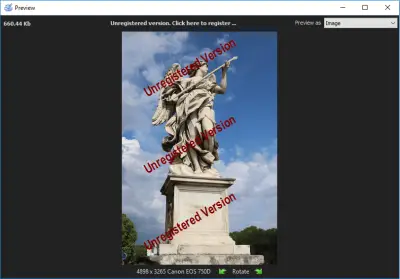
- 6. RAW partition files recovery. To recover files, you need to select the desired files and click on the red cross named “Recovery”. Select the location (not the RAW partition!), and after that, you will be prompted to purchase a license. Enter the license key and save your files.
RAW partition repair methods:
As long as you have your files back from a RAW logical drive, you can safely fix it.
Chkdsk is not always availabe for RAW partition, so you can try to use diskpart method to restore RAW partition into real file system (read "Action 6" in the link).
Another way, you can use Disk Management as Windows RAW partition repair tool, that make from RAW NTFS, FAT or exFAT file system (read "Action 4" in the link).
6 Possible Causes of a RAW Disk
Typically, there are several reasons why a disk may become RAW, making it difficult to identify the exact cause. It's like being late for work - the outcome is clear, but the reason may be unclear due to several factors, such as traffic, illness, or an emergency. Similarly, a hard drive may turn RAW due to various factors. In the following section, we will summarize the common causes of a RAW hard drive.
Partition Table Damage
If the partition table of a hard drive becomes damaged, the entire hard drive will become RAW, regardless of the cause. The partition table is essential for the operating system to recognize the different partitions on the disk, as it contains information such as size, location, type, and other details of each partition.
Reinstallation or Restoration of the Operating System
There are various reasons why you may opt to reinstall or restore the current operating system. However, this process can potentially lead to a RAW disk or partition.
Virus Attack
Computer viruses and ransomware are prevalent worldwide, causing numerous issues such as loss of documents and photos, partition loss, system and file system crashes. When viruses attack the hard drive and modify or delete essential parameters and information, the hard drive can be converted into a RAW state.
File System Structural Damage
If RAW problems arise without an apparent cause or indication, manual analysis of the underlying causes is necessary. If you are not proficient in such analysis, professional tools such as WINHEX can be used.
Bad Sectors
If clicking on the letter of the hard drive results in slow response time, it indicates the presence of Bad Sectors in the critical area of the hard drive. In this case, a professional tool is needed to create a mirror of the hard drive and identify the location of the bad sectors. For security purposes, data recovery should only be performed once this step has been completed.
Hard Disk Drive Cable Problem
Occasionally, cable issues can cause a hard drive to appear as RAW in a computer. When the cable is damaged, the hard drive may not be listed on a computer in normal condition. Similarly, if an external hard drive's interface has poor contact, it may not appear in the computer's list of drives.
3 Possible Causes for a Partition to Become RAW
Virus Invasion
If the partition table of a hard drive, which contains information such as the starting and ending position of each partition, is damaged or corrupted due to a computer virus infection, the affected partition will become a RAW file system.
System Reinstallation
When replacing an old operating system with a new one, if the current system partition was formatted with FAT but is changed to NTFS, the file system of the system partition may no longer be recognized by the operating system.
Too Many Hard Drives And Partitions
Using too many hard drives and partitions simultaneously on a single computer may lead to the RAW partition issue.
FAQ
-
Yes, a RAW drive can be recovered, but it may require specialized data recovery software or professional data recovery services.
-
One common reason is that the file system on the partition has become corrupt or damaged. This can happen due to a virus or malware attack, power failure during a write operation, or other system errors.
-
To restore a RAW partition to NTFS, you can try the following steps:
1. Backup your data: Before attempting to restore a RAW partition, it's important to backup your data. You can use data recovery software to recover your files from the RAW partition.
2. Format the partition: Open the Disk Management tool in Windows, locate the RAW partition, and right-click on it. Select "Format" and choose NTFS as the file system. Click "OK" to format the partition.
3. Assign a drive letter: After formatting the partition, right-click on it again and select "Change Drive Letter and Paths". Choose a drive letter and click "OK" to assign the letter to the partition.
4. Recover your data: Copy your data from the backup you created earlier back to the partition.
Note that formatting the RAW partition will erase all data on the partition, so it's important to backup your data before proceeding. Also, data recovery software may not be able to recover all data from a RAW partition, so it's important to use a reputable software and consult with a professional data recovery service if necessary.
-
To recover data from a RAW partition using CMD (Command Prompt) in Windows, you can try the following steps:
1. Open CMD as Administrator: Click on the Windows Start menu and type "CMD". Right-click on "Command Prompt" and select "Run as Administrator".
2. Type "chkdsk" command: In the command prompt, type "chkdsk" followed by the drive letter of the RAW partition and a colon. For example, if the RAW partition is assigned the letter "D", type "chkdsk D:" and press Enter.
3. Wait for the process to complete: The CHKDSK utility will scan the partition and attempt to recover any data on it. The process may take some time depending on the size of the partition.
4. Copy recovered data: Once the CHKDSK utility completes the scan, it will list any recoverable data on the partition. Copy the recovered data to another drive or storage device to prevent further data loss.
Note that the CHKDSK utility may not be able to recover all data from a RAW partition, and it's important to backup your data before attempting any data recovery methods. If you're unable to recover data using CMD, you may need to use specialized data recovery software or seek the help of a professional data recovery service.
-
Yes, CHKDSK (Check Disk) can sometimes fix a RAW partition. When you run CHKDSK on a RAW partition, it will attempt to repair any logical errors in the file system and recover any data that is still accessible on the partition.