
4 Practical Ways for File Recovery
Data loss is inevitable, and anyone can be a victim. Have you ever lost some important files after a sudden hardware failure or unintentional deletion? It’s pretty easy to accidentally delete files, and often you won’t even know you’ve done it until it’s too late. All the years of family photos, irreplaceable videos and important documents can be gone with a single accidental click.
Thankfully, you might be able to get them back using the previous version of Windows deleted file recovery or the best file recovery software.
If you’re wondering about how to go about retrieving deleted files, there are many different methods, and it depends on the severity of the deleted file. File recovery in Windows 7, 8, 10 and 11 is super-easy and if you want to unerase your files, and there are many quick and easy methods to do file restore. This can be sub-surface level data recovery using the software, a quick Recycle Bin recovery, or deep software recovery.
How to not erase deleted files fully
Accidentally deleting documents is simple to do and you may not even recognize you've done it until you need the file again. And that can happen to anyone! The hardest thing is when you don’t know anything about recovering files, or how to bring your essential files back. Well, that’s no longer an issue, since retrieving deleted files and recovering lost files has become super-easy nowadays.

Even though home Windows may not be able to see documents you delete, they may be still there and are able to be retrieved. The faster you act, the greater the chance you'll have of recovering them. And if you've already got recovery software hooked up, it's better still.
Remember that you need to be cautious. Don’t install recovery software on the hard drive where you lost your files, because you might overwrite the very documents you are trying to get back. Try to use the computer on which you deleted your files as little as possible to increase the odds of actually recovering files.
Can files be recovered from a failed SSD or hard drive?
Accidental deletion, hard drive/SSD failure, viruses, and data corruption are some of the ways you can lose vital data. It does not always matter how did you lost files, what matters is that there are ways of recovering your files, and often this process is easier than you expect.
Why do hard drives and SSDs fail?
When you find your SSD not performing like it should, or suddenly going silent, it’s often due to a critical hardware failure. Since SSDs don’t have any spinning disks or any moving parts, the semiconductor components can fail due to shorting, melted solder points, worn out controllers & capacitors, etc. Recovering deleted files depends on the severity of the hardware failure. Often, you can recover deleted files for user-based hardware failures with recovery software.
Hard drive failure is pretty well-documented and the reasons behind it can range from things like physical trauma, platter misalignment, bad sectors, bearing and motor failure, head crash, mechanical failures, and so on.
When it comes to recovering file, SSDs are much less likely to fail compared to hard drives but hard drive data recovery is considerably easier when it comes to both physical repairs and software recovery.
The difference between hard drives and SSDs in the file recovery process
It is a myth that files can't be recovered from corrupted hard drives or SSDs and it was dispelled a long time ago. You should know that it’s possible to recover files from both failed SSDs and hard drives using recovery software. While physically damaged SSDs and hard drives will need professional recovery companies to get data out, the software approach is still viable for user-grade hardware failure.

The main difference between the software recovery processes is that there are more mainstream software packs available for software-based hard drive data recovery, whereas only powerful and specifically designed solutions will work for physically damaged drives.
To recover files on an SSD or hard drive, here are a few things that you need to know. If you’re looking at recently deleted files, it’s easier to recover them. However, if you’re looking to recover deleted files that are caused by a hardware failure, it can be a bit trickier. In that case, you need to turn off your PC as soon as you suspect a hardware failure and contact a local repair shop to deal with that. No software can heal physical damage.
Recovering deleted files on an SSD or hard drive can range from simply pulling them back from the Recycle Bin to running recovery software. For the most part, you’re going to be looking at a relatively simple process with modern-day recovery packs. It’s possible to recover deleted files from a failed SSD or hard drive. The process has been simplified with file recovery software. Since powerful recovery software allows for recovering deleted files from both SSDs and hard drives under the same package, data recovery has been made easier.
Ways to recover deleted files
In case if you’ve been suffering from data loss and are wondering about recovering files, don’t worry: here are the ways to recover data. The process of doing so ranges in complexity, but the process is never hard. There are four ways to restore deleted files:
- Check your Windows Recycle Bin
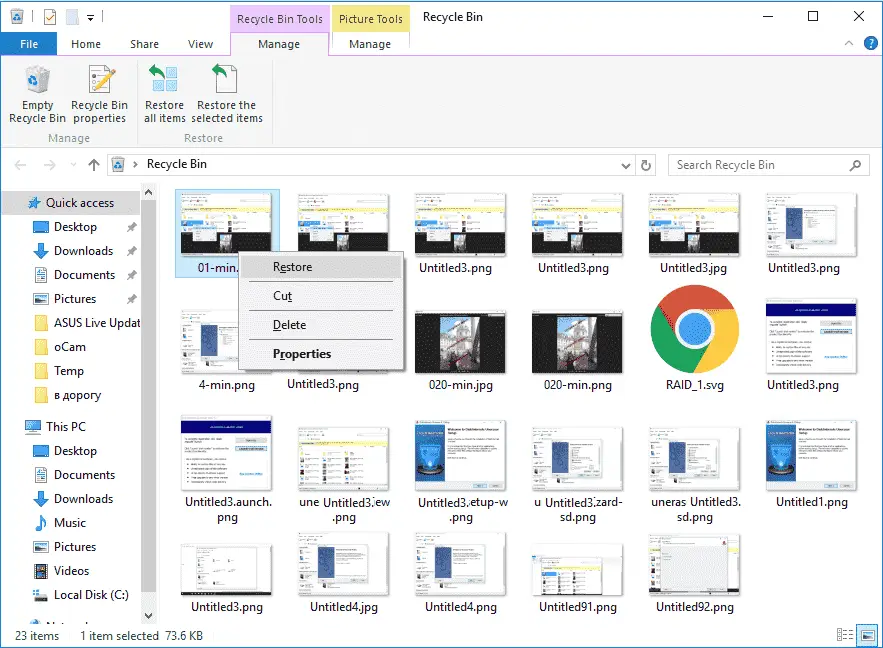
When you cannot find deleted files, you start to panic and you might totally forget about checking the Recycle Bin. If you just deleted your files on the laptop by moving them to the Recycle Bin and did not click Empty Recycle Bin, you may retrieve them comfortably. Just open the Recycle Bin, then locate and right-click on the documents you need and select Repair. The erased files will be recovered to their respective locations.
To recover previous versions of deleted or lost files
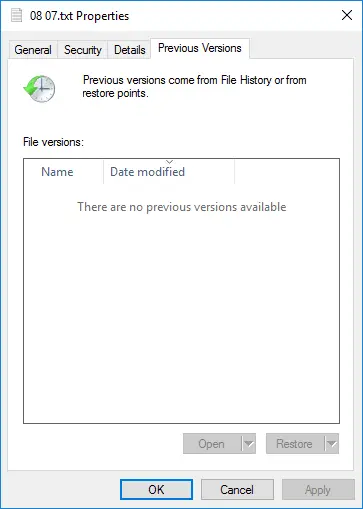
If you have emptied the Recycle Bin, you can try to recover all deleted files using previous versions of the deleted or lost files using Windows’ built-in free backup and restore lost data feature. It’s a simple process to recover files in Windows. Pay attention, though: If you’re not sure that the previous Windows version contains your files, then don’t use that version. Using the previous version may lead to your data being overwritten.
- In Windows 7
Click the Start button and click on Computer. Navigate to the folder that used to contain the file or folder, right-click it, and then click on Restore Previous Versions. Here, you'll see a list of available previous versions of the deleted files or folders with different times and dates. Choose the version you like and click Restore to recover your deleted files.
- In Windows 11, 10, 8 and 8.1
Open the folder that used to contain the deleted file and click the History button. File History will display all the files contained in the most recent backup of that folder. Click the Previous button to locate and select the file you want to retrieve and then click the green Restore button to get it back.
- Restore a file from backup
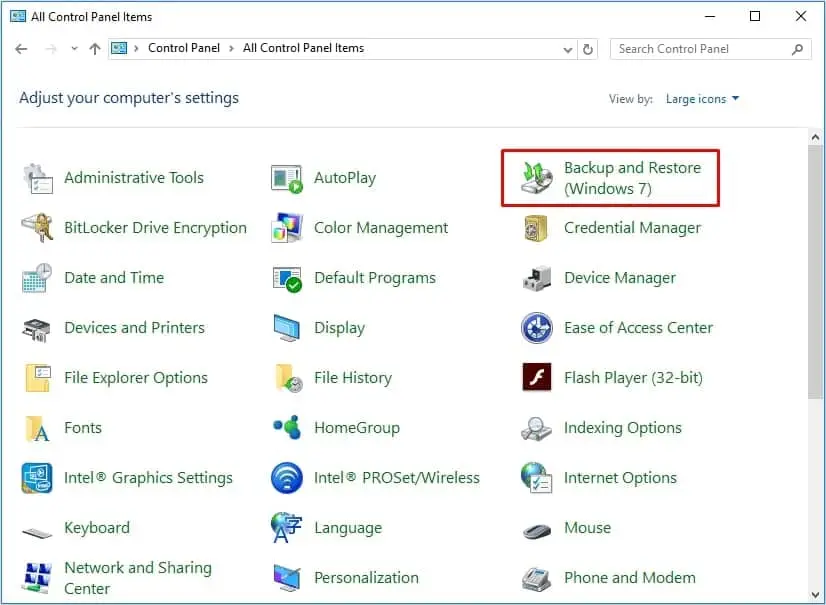
To perform file restore from a backup, ensure the media or drive that your backup is saved on is to be had, and then take the following steps:
- 1. To open “Backup and Repair”, click the Start button
- 2. Select “Manipulate Panel”
- 3. Choose “Machine and Preservation”
- 4. Select “Backup and Repair”
- 5. Click “Restore my files” and then agree with the steps in the Wizard for recovering deleted files.
Data recovery software
You can always download a file recovery program and use it to look for and get your deleted files back. If you checked every place your file could be and are not able to recover it with Windows backup, or you are not sure that you are able to do it, file recovery software can be helpful. To retrieve deleted files DiskInternals Uneraser™ is the best file recovery software.

DiskInternal Uneraser™ is easy-to-use, efficient software that includes a recovery wizard that guides you step-by-step through the recovery process.
Uneraser™, just like the name suggests, is a deleted file finder and a simple but powerful recovery software tool that provides restoration file recovery and is created for the not-so-tech-savvy user who wants to get their files back.
DiskInternal Uneraser™ does a great job to recover your lost data.
Supported file systems: FAT12/16/32, APFS(reader), ExFAT, RomFS(reader), HFS+(Mac), Ext2, 3, and 4 (Linux), ReFS, NTFS, NTFS5, UFS, XFS and ZFS.
The tool helps you with all steps of the file recovery process, even those that can't be involved in every step, to recover wide variety (photos, music tracks, videos, documents, etc.) of deleted files. With so many data recovery software tools in web stores, it has gotten impossible to get the complete range of different file types in one recovery software tool for a reasonable price. But DiskInternal Uneraser™ is an all-in-one software solution that recovers up to 95% of lost data in very little time.
DiskInternals Uneraser™ Guide
To start the lost file recovery process, download DiskInternals Uneraser™ and launch the executable file.

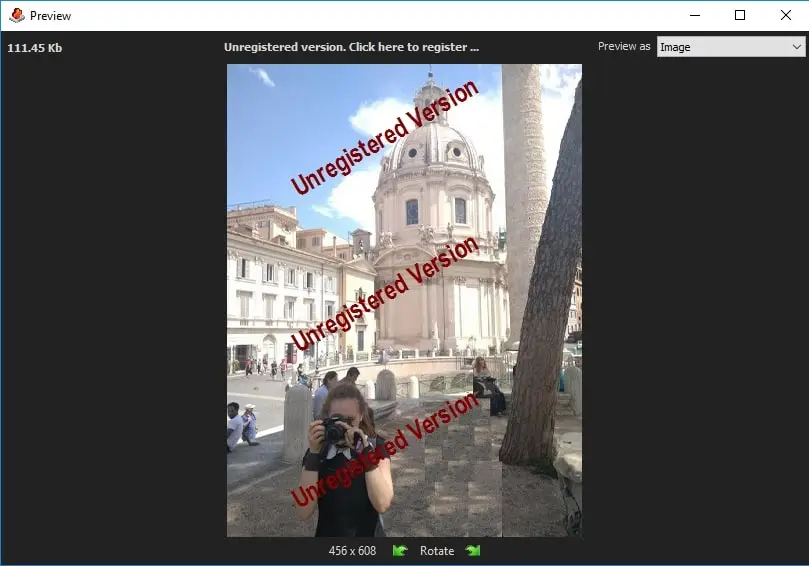
If you don’t want to buy the software right off the bat, there is a trial version available that provides all the options as the licensed version, including file scanning and preview of deleted files, but you cannot actually restore the files on your computer until you get the license.
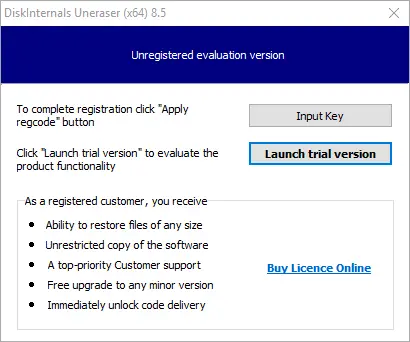
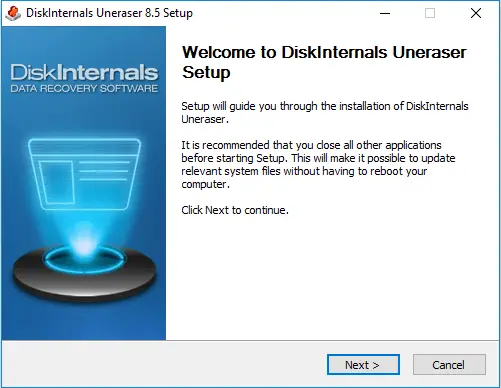
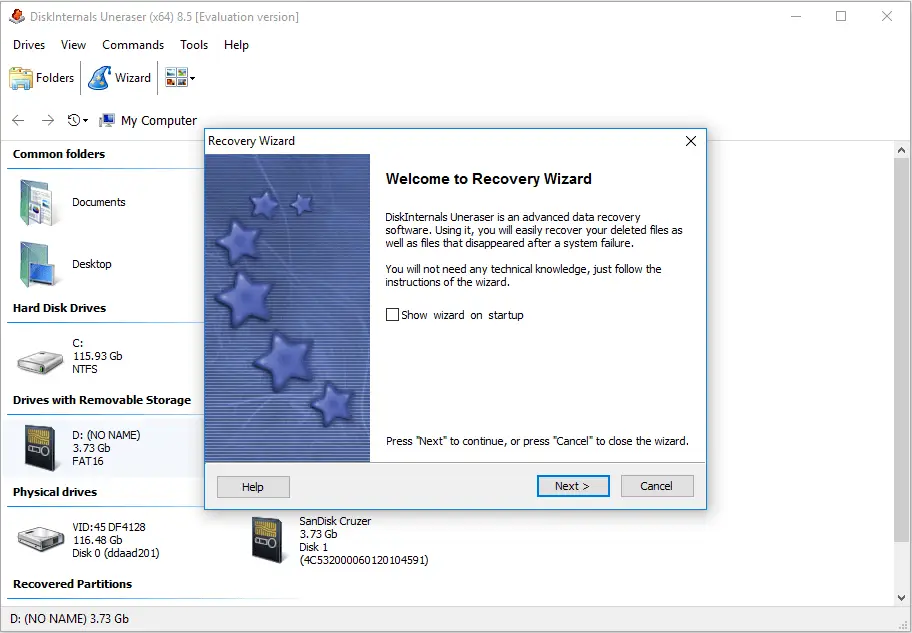
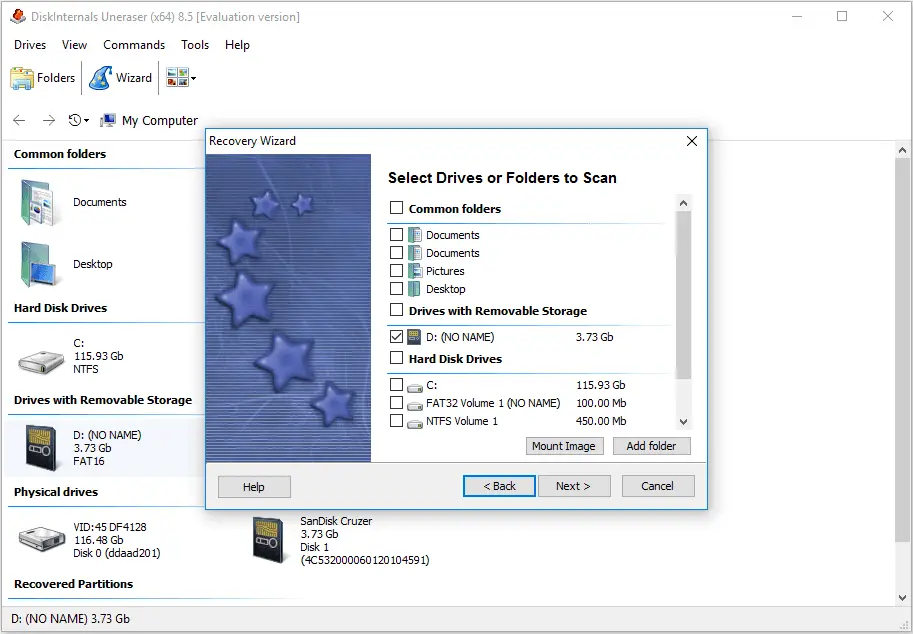
- Open the program and click on the Wizard icon; a new window will open and the drivers and folders for scanning will be launched. Pick a folder or disk you would like to recover and click on the Next button.
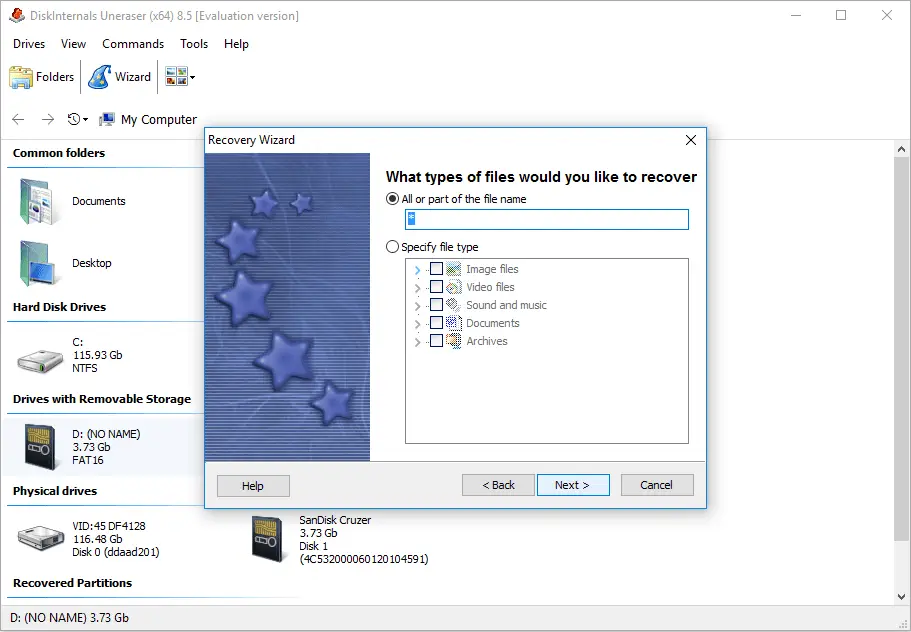
- Select the type of file you would like to restore. There are quite a lot of restorable files, including videos, documents, audio files, etc. Of course, you can choose everything.
- There are a few different types of scanning options. One option does a quick search and looks at recently deleted files; this process is much faster, but it will not bring forward the files that have been deleted some time ago. The other option is a deep scan, which will do a deep scan of the hard drive and find much older deleted files. This process is slower but more comprehensive.
- The program will find deleted files and they will be marked with a red cross in the upper left-hand corner.
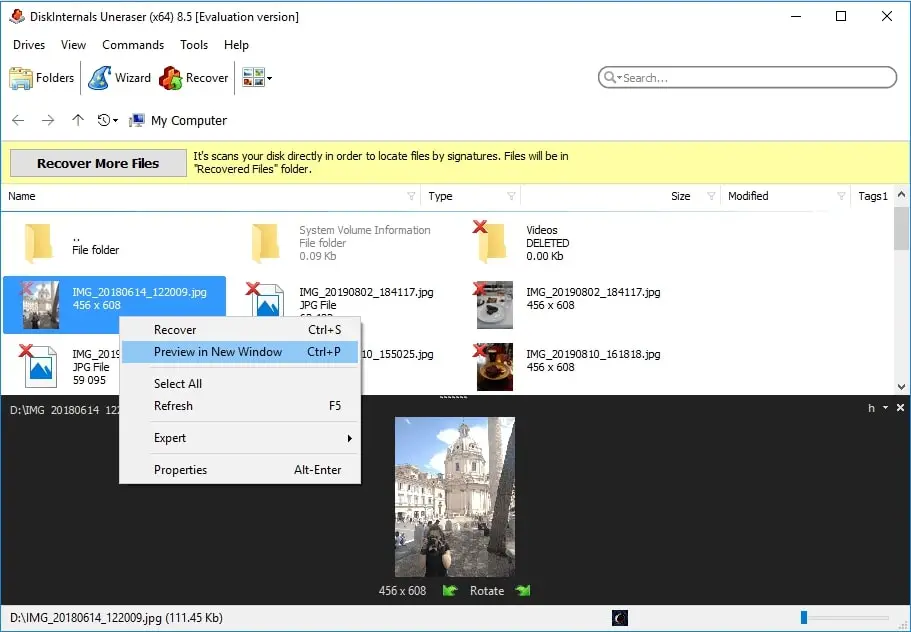
- You will be able to preview found files’ content with their original name before exporting them. Just choose the file, click the right mouse button and select “Preview in New Window” or use the keyboard command “Ctrl+P”.
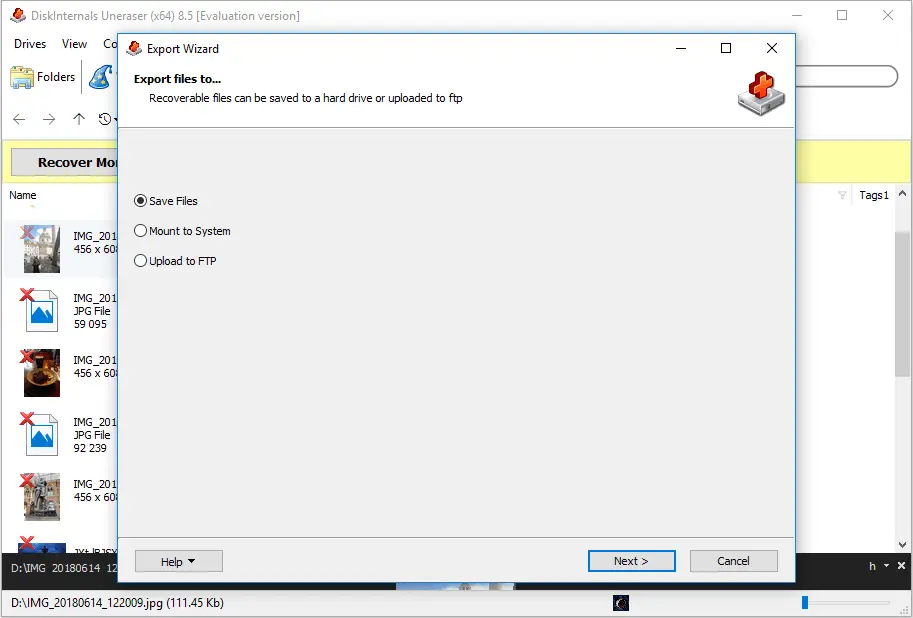
- After choosing the files you want, click on the red cross named “Recover” and the software will recover lost files after you choose an output location for the selected files.
In this day and age, file recovery is more important than ever, and DiskInternal Uneraser™ is the software to help you do just that. Not only is this tool the greatest in terms of quality, but it’s also the fastest, sleekest and the most easy-to-use data recovery software on the market. DiskInternals Research has over 15 years of experience in recovering deleted files when it comes to recovering data on an enterprise-level or a user level. DiskInternals Research is the team of professionals that the market trusts.
Stop chasing around other brands, and choose DiskInternal Uneraser™ to be your future recovery partner for life.
Frequently Asked Questions
- You can restore any files, including photos, video, text, and music.
- Sure! DiskInternals Uneraser is able to restore files from USB drive either from SD card, SSD or internals/external HDD.
- No. After you installed a trial version and made sure that your files are recoverable, you just need to purchase a license and enter the license key. Since that moment, you can save found files.
- Yes. To create a disk image, run DiskInternal Uneraser™. Skip the Recovery Wizard. Click on the desired drive and press Ctrl + C. Specify the name for the disk image. Click Save.
- Do not install recovery software on the hard drive where you lost your files, because you might overwrite the documents you are trying to recover. Use the computer on which you deleted the files as little as possible.
- Use the quick search for recently deleted files. It is faster, but it will not find files deleted some time ago. A deep scan is slower but more comprehensive and can find much older deleted files.
- Yes. You can preview a found file's content with its original name before exporting it. Select the file, right-click it, and choose “Preview in New Window,” or use Ctrl+P.
Related articles
- What is ORF file and how to recover it
- 6 Ways of How to Transfer Files from PC to PC
- Device Descriptor Request Failed? Fix It!
- Defrag SSD: Is it worth it?
- Recover an InDesign File - All You Wanted to Know
- The program can't start because msvcr110.dll is missing
- What if Windows 10, 11 Keyboard is Not Working
- [Solved!]What to do if File Explorer keeps opening
- Fix the Issue: Windows Installer Service Could Not Be Accessed
- How To Recover Files Deleted From Recycle Bin? - Best Metods in 2026
- How to Recover Deleted DNG File
- How to Repair DNG Files (Corrupt/Damaged)
- How to Recover Permanently Deleted Videos From Your Computer
- How to Fix/Repair Corrupted USB Drives Without Formatting 2026
- SD Card Recovery: How to Recover Deleted Files From an SD Card (2025)
- How to Find Deleted Videos from YouTube - 2026 Guide
- Best Data Recovery Software for Windows 10 (2025)
- How to Recover Permanently Deleted Videos on Your Android Device
- How to Recover Deleted Videos on Android Phone (2025)
- Best Data Recovery Software for Windows (2025)
- Best VMware Backup and Recovery Tools - How to Backup VMware Data
- How to recover permanently deleted files in Windows 10
- How to Recover Files From a Corrupted USB Flash Drive (2025)
- A Step-by-Step Guide to Fixing OBS Lag
- How to recover / retrieve a screenshot
- How to Format an SD Card for GoPro Camera (2025)
- How to Recover Virus infected/attacked Files from USB Dirve and Pen Drive (2025)
- Recover shift deleted files
- How to Retrieve a Deleted Voicemail on Android - Methods and Tips (2025)
- How to recover photos from a formatted SD card
- CF Card Recovery - All That You Wanted to Know
- Deleted or lost PNG image? Recover it today!
- JPEG Recovery - Restore or Repair corrupted JPEG Photos and Images
- Best Free SD Card Recovery Tools in 2025
- Recover Deleted Files on Windows 10, 11 in 2025
- Laptop Data Recovery: How to Recover Files from Dead Laptop Hard Drive in 2025
- How to Recover Deleted History on Google Chrome on Windows
- Accidentally formatted SD card
- How to Repair a Damaged SD Card without Formatting
- Can you fix a corrupted micro SD card?
- How to Recover Permanently Deleted Photos from PC in 2025
- USB error code 43? You can easily solve it!
- Here is How to Protect Your SKP Format Files
- SD card corrupted? Recover it!
- Recover USB Files Without Formatting
- SVG file recovery with Uneraser
- Recover Lost Photos Right Now!
- Recover photos from SD card on Android
- How to Recover Files Deleted by Avast Antivirus | Avast Restore (2025)
- Provide flash Drive Recovery Today!
- PDF Recovery: how to restore a corrupted PDF file
- Recover Deleted PDF Files: A Step-by-Step Guide
- Make SDHC Card Recovery Today!
- Need to Recover deleted TIFF files? It's easy!
- What to Do if the iPhone is Not Showing Up on the PC?
- How to make Cr2 File Recovery by yourself
- How to recover deleted files on SD cards
- Perform GIF recovery: all you need is here!
- Desktop location is not available
- Best methods on how to fix JPEG error #53 are here
- [Solved] How to get pictures off a broken phone
- For what Windows old folder needs? How to delete it?
- The computer is low on memory? You can fix it!
- Format a USB drive to a new file system
- What to Do if SD Card Needs to Be Formatted?
- How to Restore Deleted/Lost Files from Seagate Drive?
- Recover overwritten files
- Here is How to Convert a PDF to a Microsoft Word Document
- Incremental vs differential backup - what is the difference
- How to recover deleted music files? Only workable solutions
- Change the file extension in Windows 11, 10, 8, 7
- Here is how to resize an image in Gimp safely
- How to access Device Manager in Windows 10, 11?
- exFAT vs NTFS comparison
- What to do if Gimp eraser is not working?
- Guide: convert AVI to GIF
- [Solved] Command Prompt keeps popping up? Stop it!
- How to Convert PDF to JPG in Windows 10
- Here is how to convert M4A to WAV safely
- How to convert DDS to PNG
- If you get an audio lag issue in Windows 10
- How to fix a damaged SD card
- How to fix a corrupted SD card
- BMP file recovery: restore deleted .bmp files now!
- OGG File Recovery - All You Need is Here
- [Error] HP Laptop Has a Black Screen
- The file is too big for the destination file system
- Here is How to Use Word to JPG Converter Safely
- 3 Tips on How to Find Deleted iMessages
- Here is How to Recover Deleted Files on Android Phone
- Hard drive file recovery process
- How to undelete files on Mac file system
- SD Card Recovery
- Undelete files in Windows 10, 11: fast and effortless
- Photo Recovery From SD Card
- Here is how to convert MOV to GIF
- How to restore deleted Instagram posts - Instagram Photo Recovery 2025
- The semaphore timeout period has expired error
- Recover Illustrator files today!
- Unsupported SD card and how to fix it
- Windows 10 can't open JPG file? 5 Methods to fix it!
- 'Class not registered' Issue on Windows 10
- Deleted MP3 file: a recovery guide
- If external hard drive not working or responding
- An application was unable to start? Fix the 0xc000007b error!
- What are EPS files and how to restore them
- Best way to backup photos
- Recycle Bin is corrupted in Windows? Fix it!
- How to free up disk space? Find out it today!
- Recover NEF files: perform it fast and easy!
- Recover an SD card files using CMD
- How to perform 3DS SD card formation
- SD Card Music Recovery: All You Need to Know
- [Windows7] How to Free Up My Disk Space
- If You Cannot Delete the Folder
- Wsappx lead to high CPU usage? Fix the issue!
- [Win] Failed to Transfer Logged Messages with Status 50 Issue
- Do You Need to Defragment a Hard Drive in Windows10?
- Cannot open volume for direct access
- How to Upgrade Windows10 From 32-Bit to 64-Bit Safely
- Windows 10, 11 Sticky Notes Missing
- How to Defrag(Optimize) an External Hard Drive
- Windows 10, 11: Optimization for SSD
- An Issue: Windows could not complete the installation
- How to Fix Windows kb4023057 Update Issue
- Hard Disk Full But No Files
- If the external hard drive keeps disconnecting in Windows 10
- If your hard drive shows up in Disk Management
- Retrieve lost game data on Steam
- How to get back old photos
- Set up allocation unit size while formatting SD card
- How to clear cache in Windows 10?
- What if Windows 10, 11 apps won't open?
- ‘The device is not ready’ error occurs: your actions
- Let’s fix ‘SD card won't format’ issue
- Here is everything you need to know about TF Card
- File system error (-2147219196) occurs: your actions?
- The Device is Unreachable? Fix 0x80070141 Error Now!
- What to do if the Process System isn't responding?
- A device attached to the system is not functioning: fix
- How to Recover Data from Dead SSD (FIX Dead or Crashed SSD)
- How To Recover Deleted Files After Emptying Recycle Bin
- How to Restore Permanently Deleted Files from Recycle Bin? (2025)
- SanDisk Data Recovery Software - Recover Deleted & Lost Files from SanDisk [2026]
- Fix: USB drive says no media in Disk Management
- How to Recover Deleted Videos from Your Ring Doorbell Camera
- Damaged SD Card Recovery
- Deleted photos? Recovery is possible!
- File recovery from SSDs
- Guide: How to recover deleted files in Windows 7
- Guide: How to Recover Permanently Deleted Files in Windows 8
- How to fix corrupted memory card
- How to read a corrupted SD card
- How to recover a deleted file
- How to recover deleted files from a memory card
- How to recover deleted files from external hard drive
- How to recover files from a corrupted micro SD card
- How to save a damaged SD card effortless?
- Recover Formatted SD Card
- Recover a USB Stick That Wants to be Formatted
- Recover Deleted Files from the Recycle Bin
- Recover deleted photos from SD card
- Recover deleted photos on Windows 7 today
- Recover Hidden Files in USB Drive - 4 Great Methods!
- Recover memory card
- Recover permanently deleted files from a PC
- SD card deleted file recovery
- Solution to recover deleted photos on Windows 10
- 8 Best USB Flash Drive Repair Tools in 2025 | Pen Drive Repair Tools
- [Solved!] Undelete files and how you can do it
- Windows 8: recover deleted photos
- Desktop icons missing? Recover them and your files!
- Invalid value for registry on JPG/JPEG/PNG files? Fix it!
- Recover Unsaved or Deleted PSD Files Today!
- [Solved] The system cannot find the file specified
- Windows 10, 11 slow? Solve the problem!
- Recover Deleted Audio, Video and movies
- Recover Deleted Word documents
- Recover digital photographs and graphics, Undelete pictures
- Unformat SD Cards at Home: how to do it safe
- USB drive keeps disconnecting and reconnecting
- How to Speed Up Windows 10? Find the Solution!
- Having Bad Image Error on Windows 10, 11? Fix It!
- If Windows resource protection found corrupt files
- Fix the Issue: Recovery D Drive is Almost Full on Windows 10
- How to recover deleted Skype messages
- Recover an orphaned file
- Windows Audio Device Graph Isolation
- Windows 10 mouse lag
- If you have problems with Windows 10 Bluetooth drivers
- Fix no audio output device is installed Windows 10
- When Alt-Tab is not working
- When screensavers don’t work
- The difference between SDHC and SDXC
- What to do if Photoshop says it is not a PNG file?
- Top Free Photo Editing Software for Windows 10
- Guide: Convert M4B to MP3
- Here is how to convert AIFF to MP3
- What to do if iPhone photos disappeared?
- What OTG connection is? How to use it?
- Why won't pictures import to the computer?
- Here is how to convert ICO to PNG
- Here is how to lower disk usage
- Here is how to convert FLV files to MP4 safely
- Perform WebP file recovery today!
- Best Free USB Format Tool in 2025 - Format a usb flash drive
- Here is How to Convert Excel to CSV Files Online
- How to Recover Deleted Myspace Photos [2026]
- Convert HEIC to JPG
- DiskInternals unique technology
- Let's convert ODT files to PDF format
- Need to convert MTS files to MP4? Let's do it!
- Here is how to convert PDF to Publisher
- Here is how to convert ePUB to PDF
- Here is how to convert Tiff to PDF on Windows 10, macOS or online
- Undelete files. Undelete zip. Unerase rar. Restore CAB files
- Recovering Permanently Deleted Files: Possible or Not?
- How to undelete files in Windows 7/8/10
- Testimonials for Uneraser
FREE DOWNLOADVer 8.26, WinBUY NOWFrom $29.95 39.95
Glossary
NTFS is a file system developed in 1993 by Microsoft. It is still the most advanced Windows file system.
ReFS is a newer Windows file system that replaces to some extent NTFS. The main feature is fault tolerance and increased productivity.
Ext2/3/4 is a Linux file system with several versions: Ext2 is not a journal file system, Ext3/4 lacks this drawback. Therefore, Ext2 is still used in flashcards.
HFS is a common file system from Apple Computer for computers running Mac OS.
ReiserFS is a regular journaling file system developed specifically for Linux by Namesys in 2001.
Reiser4 is the 4th version of the file system Reiser, created in 2004 by Namesys, with high performance and encryption options.
XFS is a modern 64-bit file system created in 1994. It has high performance and scalability.
ZFS is a 128-bit file system integrated with the logical volume manager.
RomFS is a primitive file system for reading data on Linux systems.
APFS is the latest file system created by Apple for Mac computers with macOS 10.13 and higher.
Forensic Disk Images (EnCase, ProDiscover) is an application for creating evidence files that help you to create a report on forensic operations at the end of work and provide reliable information to investigators.