
NTFS Data Recovery software
Don't say "It will never happen to me". It happens with every PC user once. No need to panic, though. Be prepared and you'll have a chance to get your data back. Unless physically destroyed, your files can be recovered with DiskInternals NTFS Recovery!
About the NTFS file system
The NTFS file system is gaining more and more popularity among file systems. And this is no accident, because NTFS is highly secure, is easy to work with, and is much more productive than its counterparts. This file system has many extensions; for example, using an ACL, you can control access to data. In addition, there is support for Unicode, large files, etc.
Despite all these advantages, NTFS file systems may still be damaged. Fortunately, NTFS file recovery is possible.
Data Recovery and Unformat
NTFS Recovery is a fully automatic utility that recovers data from damaged or formatted disks. It is designed with a home user in mind. You don't need to have any special knowledge of disk recovery.
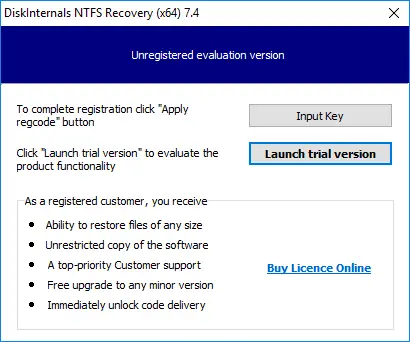
The "Recycle Bin" icon on your Windows desktop allows you to recover deleted files. Unfortunately, there are many possible situations when the Recycle Bin is useless. Just a few examples:
- A disk volume containing valuable info was damaged due to a system malfunction
- A disk volume was damaged due by a dangerous virus
- Windows cannot access a disk drive
- Disk was damaged
- You have mistakenly formatted a disk volume
- Files or folders are not readable
- Corrupt or damaged partition table.
Your data is lost completely only if overwritten with other files. Windows 11, 10, 8 and Windows 7, XP and other modern Operating systems from Microsoft, all use NTFS (you don't have to understand the abbreviation to use it, right?) NTFS is an advanced disk formatting that has many useful features including ways to recover lost data. DiskInternals NTFS Recovery is a user-friendly tool that utilizes NTFS features allowing you to recover files from damaged NTFS volumes or even recover whole volumes in case of them being lost or unintentionally formatted.
Benefits of NTFS Recovery
NTFS Recovery can do thorough searches for a wide range of file formats:
- Presentations and documents (PPT, PPTX, RTF, PDF, DOC, DOCX)
- Tables and charts (XLS, XLSX)
- Archived data
- Photos, images, and pictures (GIF, JPEG, PNG, PSD)
- Videos as well as music (MPG, MP3, AVI, DAT, MKV).
The user can scan not only hard drives and SSDs, but also any removable storage media with the NTFS file system. They can be disks of any size and any manufacturer, there is no difference: the NTFS Recovery application will do just fine!
NTFS Data Recovery
You can accidentally delete any system file, and this will be a fatal mistake for you and the NTFS file system. A virus may mercilessly damage system files. There are a lot of options for dealing with these kinds of events, but here is how to perform NTFS file recovery: use special professional software. And so that you do not waste time looking for such software on the Internet, use DiskInternals NTFS Recovery.
This software supports all versions of Windows and recovers files of absolutely any type and size. With this software, you will quickly and accurately perform NTFS file recovery. It can handle type of issue and has everything you need!
DiskInternals NTFS Recovery is designed with a home user in mind. How to recover data for NTFS file systems? You don't need to have any special knowledge of disk recovery. The recovery process is fully automated and fool-proof. For example the program won't let you further damage your data by restoring your files onto the same disk volume.
DiskInternals NTFS Recovery is your last chance to save months of work or gigabytes of Your priceless photos, letters, and other valuable files. It will help you even in cases when your disk is not accessible from Windows, the disk was damaged, files or folders are not readable, and more.
DiskInternals NTFS Recovery supports the following file systems - NTFS, NTFS4, NTFS5.
Try it now. You can download a full-featured trial version of DiskInternals NTFS Recovery for free.
Data Recovery for NTFS Files
Use this detailed guide for DiskInternals NTFS Recovery so that working with the application will be even easier.
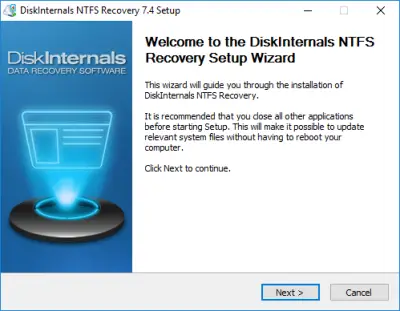
Step 1. Download and install DiskInternals NTFS Recovery.
Step 2. Launch the Recovery Wizard by clicking on the corresponding icon with the left mouse button. You will then be asked to select the type of files to restore, but you can skip this action if it is not critical.
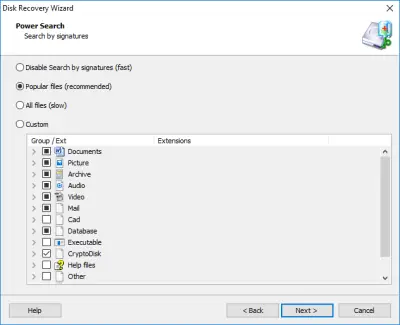
Step 3. Scan. This process may take some time, so relax and do not worry.
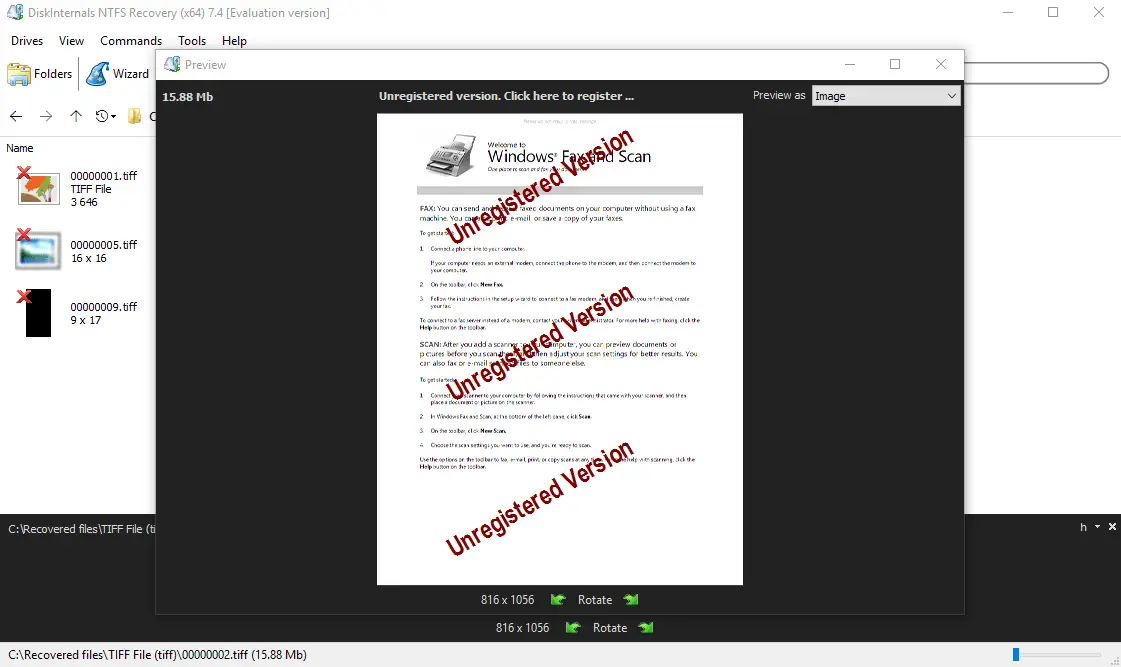
Step 4. Previewing lost data.
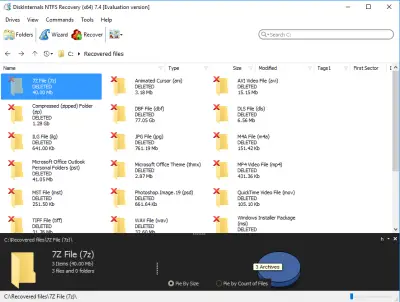
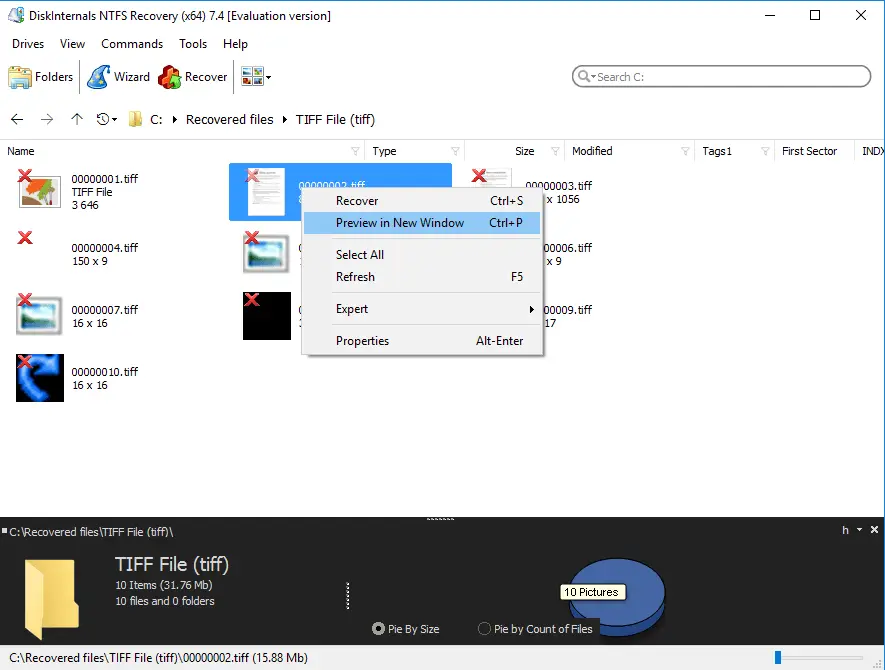
View deleted files by right-clicking on them and selecting “Preview in a new window”.
Step 5. Saving files.
You just need to buy a license for DiskInternals NTFS Recovery. You will receive a license key, which must be entered in the appropriate window. Now select a place to save the recovered data and click the Save button.
As you can see, NTFS file recovery is easy with the proper software.
Frequently Asked Questions
- 🔷 How can I increase my chances for 100% NTFS data recovery?Start NTFS data recovery as soon as possible, so you will avoid the file's overwriting.
- 🔶 Is there any limit in data restoring with DiskInternal NTFS Recovery?Using DiskInternal NTFS Recovery there is no limit. You will be able to restore your data in the amount that you need.
- 🔷 Can I test the software before buying it?Yes. Just click on the blue button "Try it free" and you will get a costless version of the NTFS Recovery. Only after you make sure, that your data is recoverable and you want to save it - you need to purchase the software.
- 🔶 Do I need to make reinstallation when I'm buying the NTFS Recovery software?No. If you tried the free trial version of the DiskInternal NTFS Recovery you don't need any rescan of the disk or reinstallation. After you purchased the software - select the files you need to restore and click "Recover" button. Enter the license code in a new window and enjoy your files!
- 🔷 What's the difference between NTFS Recovery™ and Uneraser™?DiskInternals Uneraser™ performs fast recovery (no deep scanning) for deleted files on various file systems. Works on non-damaged disk. The recovery process takes a few minutes. NTFS Recovery™ performs full recovery (deep scanning) with NTFS reconstruction. As the file system fully repairs, the recovery process may take even for a few hours.
- 🔶 What's the difference between NTFS Recovery™ and Partition Recovery™?Partition Recovery™ performs full and fast scanning for files on various file systems. NTFS Recovery™ performs full recovery with reconstruction only on NTFS.
- 🔷 Is this software able to create a disk image?Yes. Using NTFS Recovery™, you can easily create a disk image. Just click on the desired drive and press Ctrl + C. Enter the name of the disk image. Click Save.
Partition, RAID and Efs Recovery
NTFS Recovery is a part of Partition Recovery and RAID Recovery. EFS Recovery should be used for recovering encrypted files and folders. In case of damage by software and hardware faults VMware disks, easy way to recover information is VMFS Recovery™