
Video recovery from any storage including digital camera or flash memory card!
So you lost some important video files and you are panicking because they were really important and now you are left clueless about what should be done?
Was your video corrupted? Or unwittingly deleted?
Don’t worry, video recovery is possible and there are lot of different methods and video recovery software tools you can use to recover lost video files.
Are you ready? Let's read!
Video Loss ReasonsFF
Many people lose a lot of data every year and video files aren’t an exception. The most common cause of data deletion is by mistake and a lot of people don’t know that their files can be recovered. But when it comes to video, a lot of people think video recovery is not possible because of the complex nature of video files and large sizes.
Also, some video files get corrupted and users have no choice but to delete them. When, later, they find out that those corrupted files can be restored, they don’t have the video files anymore.
Some of the main causes of losing video files are:
- Accidental deletion
- Corruption of video files due to virus attacks
- Storage error
- Hardware malfunction (which is used to record videos)
- Connectivity error when files are being moved from one device to another
What to do to recover video?
If you haven’t recovered any lost data, recovering video might sound to you like rocket science, but in fact, video recovery isn’t that difficult at all. To do it, you need to get a good video recovery software tool and try to restore lost video files. To undelete videos, you can use one of the best data and video recovery software tools, such as DiskInternals Video Recovery. You can try it in a trial version as free video recovery software, and once you are fully satisfied with it, pay for a license.
Recovering Video with DiskInternals Video Recovery
DiskInternals Video Recovery is not just a video recovery tool, but also the ultimate solution to all your data recovery problems. Lost pictures, corrupted videos, music, documents and deleted files — DiskInternals software can recover it all.
DiskInternals Video Recovery supports:
- Cameras such as Sony, Canon, Nikon, GoPro, and many others.
- File systems as NTFS, FAT, exFAT, ReFS, Ext2/3/4, UFS, HFS, ReiserFS, Reiser4, XFS, ZFS, RomFS(reader).
- Video codecs for many different video types, including 3GP, AVI, MPEG, MP4, MOV, WMV, DIVX and many others.
- Storage media such as HDDs, SSDs, Flash drivers and memory cards (including SD cards, SDHC, SDXC, etc.).
Lightweight

DiskInternals software is lightweight. The best thing about them is the resource allocation, which is not like other free video recovery software tools that use all of your hardware resources and you are not able to use your PC.
Fast Recovery Speed

Being lightweight doesn’t stop it from being fast. DiskInternals’ advanced algorithms help you recover all videos and other type of big files without compromising on quality.
Built-in Wizard

If you doubt that you are unable to recover video files, don’t worry. DiskInternals Video Recovery has a built-in Wizard that guides you through all steps of the recovery process and you will perform file recovery like a professional.
Free on Trial

DiskInternals Video Recovery has a free trial version and you can buy license afterwards, if you are satisfied.
Guide: how to Recover Video files
Using DiskInternals Video Recovery isn’t difficult at all. The software has a friendly interface and a built-in Wizard, so people who are not IT professionals can use it.
Step-by-Step Guide:
- 1. Download DiskInternals Video Recovery.
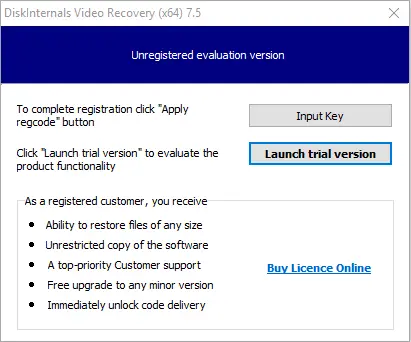
- 2. Once downloaded, run the Setup and just click the NEXT button until the software is installed.
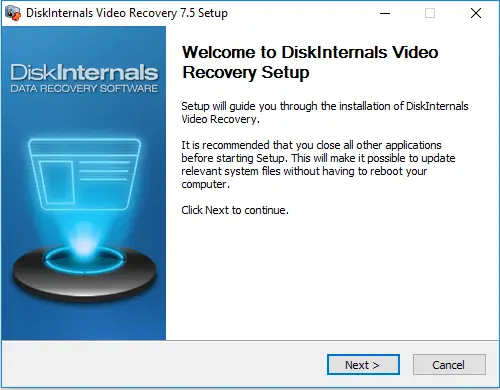
- 3. The software will start with the welcome window with the Wizard; click NEXT.
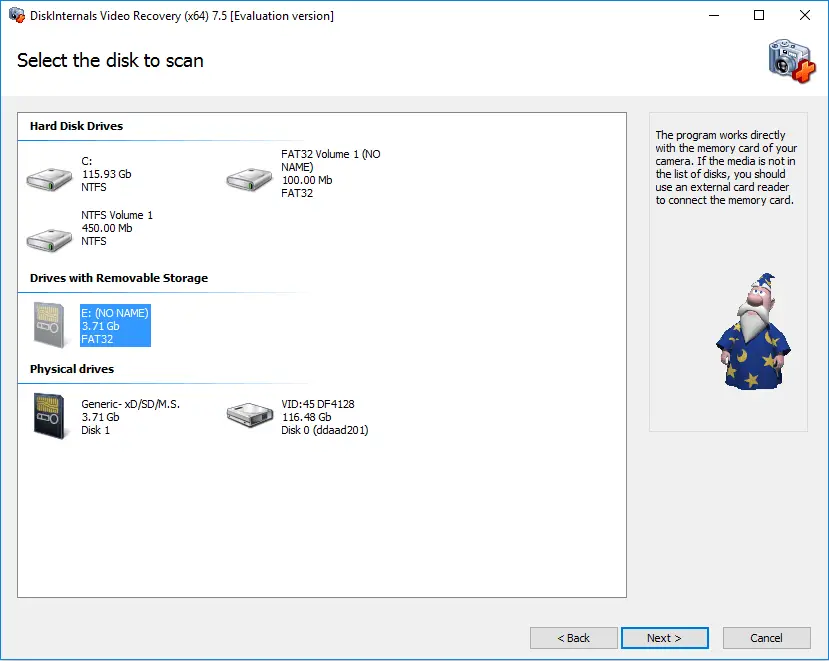
- 4. Now on the second window, you will be shown all the storage devices that are connected to or exist on your PC. It can be anything: your hard disk drives, USB, SD card, etc. Select the drive where you want to recover lost videos.
- 5. The scan will start and it may take a while, so sit back and relax.
- 6. When the scanning is done, you will see the files that are able to recover. You can select any video you want, right-click on it and select “Preview”.
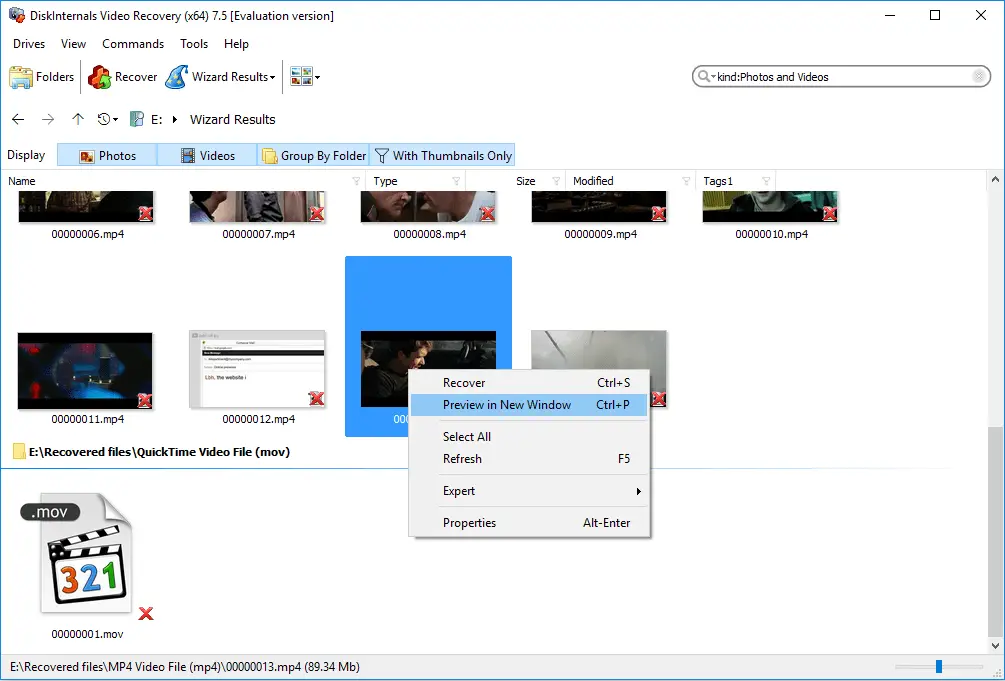
- If you are able to preview the video, you are able to recover it.
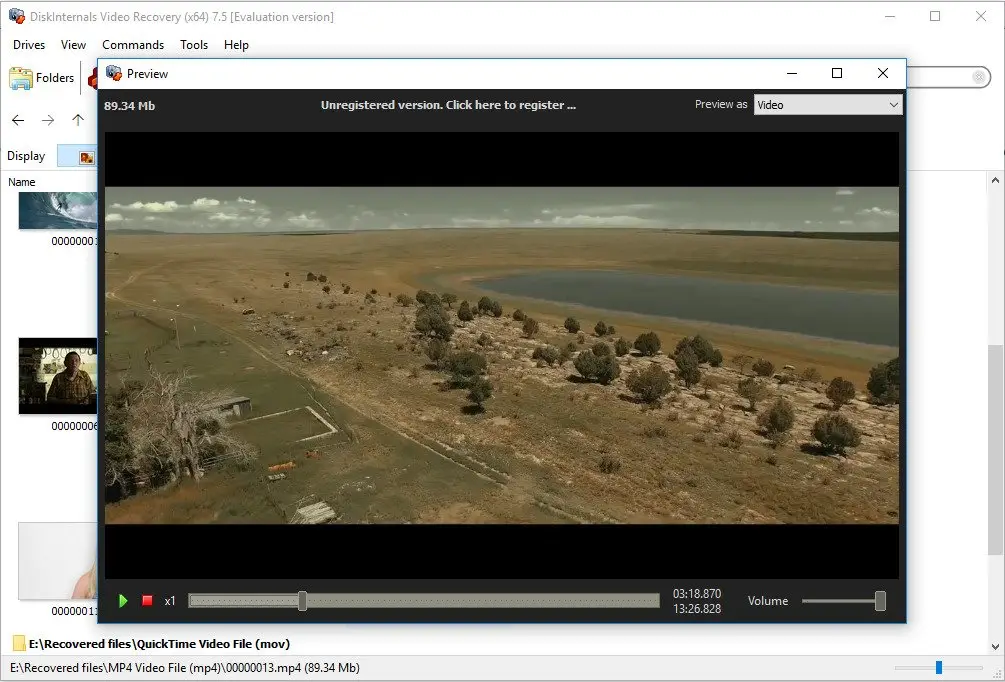
- 7. To save found videos and other files on your computer, you need to purchase a license and enter the license key.
Good luck!
Frequently Asked Questions
- 🔶 Can I restore formatted videos with Video Recovery™?That depends greatly on what kind of formatting. If it was full formatting, then no software in the world can restore it. If it was a quick formatting, then your chances are really good.
- 🔷 Do I need to rescan the SD card after I've bought a license for Video Recovery™?There is no need. After you've purchased a license, enter the license key, and you will be able to save the found videos.
- 🔶 Video Recovery™ - Does the video format matter for recovery?No. Using Video Recovery™, you can restore any kind of video format.
- 🔷 What can Video Recovery™ do for free?In the free version, you can scan your storage and preview found videos. Also, you can create a disk image to save all the important information from your storage.
- 🔶How to restore a corrupt video?Using DiskInternals Video Recovery: simply launch the software and follow the wizard to scan and recover the good version of your corrupted video file.
- 🔷How to restore deleted video from a canon?Connect the Canon to your PC and launch DiskInternals Video Recovery. Click on the canon and select “Scan” to recover all deleted videos.
- 🔶How to recovery corrupt video?To recover a corrupted video, you need a video recovery software. Interestingly, the DiskInternals Video Recovery is an ideal option with lots of useful features.